Android TV / Google TV
- Open Google Play on your TV or box, search for “Televizo” and install it.

Player app guide
Install it, activate it and add your EuroView playlist in a few minutes. Every step is checked against the developer's own instructions.
Checked on November 26, 2026
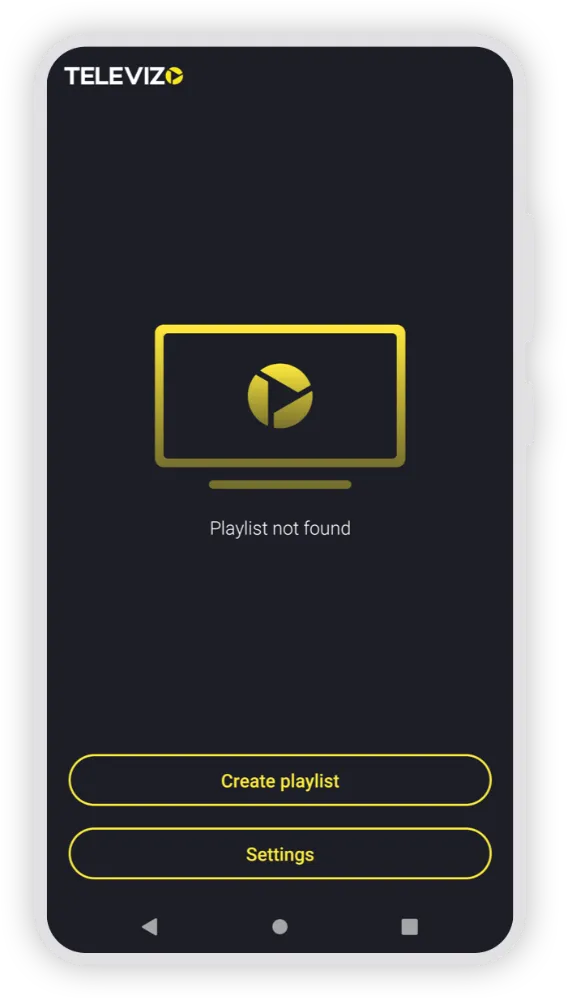
Televizo is a free Android player for phones, tablets and TVs, and runs on Fire TV through the Downloader app. It takes M3U links and Xtream Codes logins. Premium removes the ads and is a one-time purchase linked to a Televizo account; you can try it free for an hour first.
474318Pick your device. Use the official source shown here: copies on other websites can be outdated or unsafe.
474318 in the address box and press Go.Your login is in your EuroView account under My playlists: the M3U link, and the username, password and server address for Xtream Codes.
Open My playlists →Copy and paste the link instead of typing it: one wrong character and the playlist won't load.
No subscription yet? The free trial gives you a working playlist in two minutes, no card needed.
Prices are set by the developer and can change; we checked them on November 26, 2026.
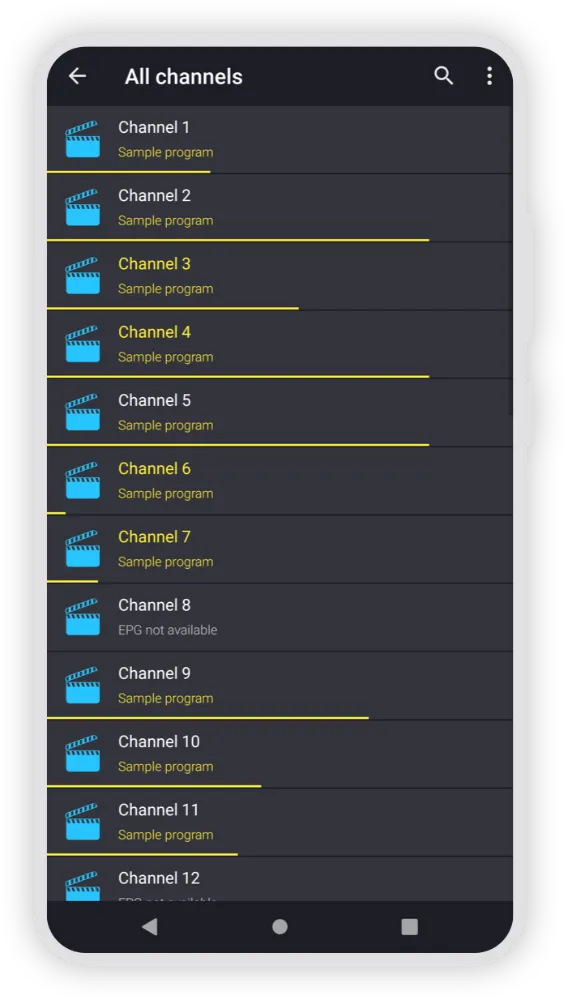
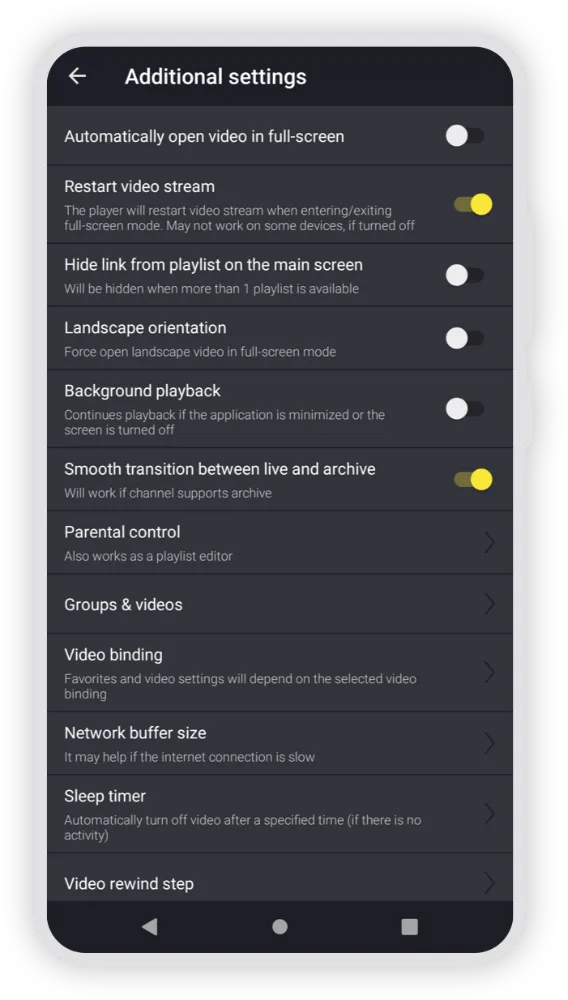
Yes. Premium can be switched on free for one hour inside the app, so you can test it with your own playlist. After that it is a one-time purchase linked to your Televizo account.
Yes. Create a Televizo account in the app's settings with any email address; it is not your Google or Huawei account. Premium is tied to that account and works on up to five devices, which you can add and remove freely.
Premium is normally bought in the Televizo Companion app from Google Play. If Google Play billing isn't possible for you, email the developer: payment by PayPal or card can be arranged.
It removes the ads and unlocks extras such as automatic full-screen, backup and restore, and parental control. The player itself and your playlists already work in the free version.
474318. Type it into the Downloader app on a Fire TV or an Android TV box; it fetches the official APK (files.televizo.net/televizo-default.apk).
No. It is a player only: it plays the channels, movies and series of the playlist you add. A EuroView subscription gives you that playlist, and you can try it for free first.
Check that your EuroView subscription is active, add the link again without spaces, then restart the app and your router. If it still fails, message us on WhatsApp: we usually reply within minutes.